
 Verified App
 You are going to be redirected to the official website to finish the download when you click these buttons above.
Yes, you can share your SmartTags with other users through the SmartThings app. You can invite others to access and track your SmartTags, making it easier for family or friends to help you locate items when needed.
Galaxy SmartTags are primarily designed to work with Samsung devices. However, they may also work with other Android smartphones that support the SmartThings app, although the functionality may be limited compared to using a Samsung device.
Yes, you can use multiple SmartTags with the same SmartThings account. There is no limit to the number of SmartTags you can add, allowing you to track various items all from one account within the app.
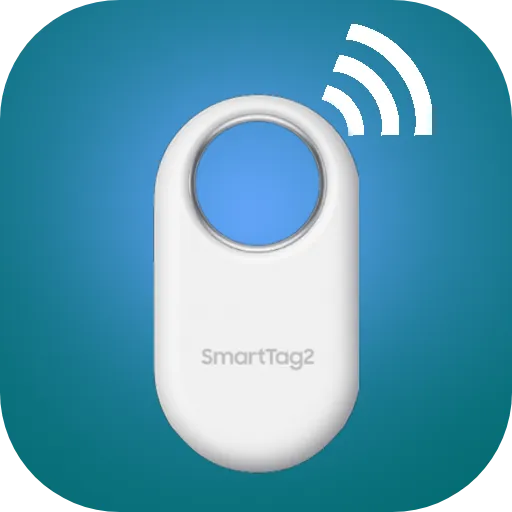
To set up your Galaxy SmartTag, first ensure that your smartphone is compatible and has the SmartThings app installed. Open the SmartThings app, tap on “Add device,” and select SmartTag. Follow the prompts to connect the SmartTag via Bluetooth, and once connected, you can name your tag and assign it to an item.
When you're out of Bluetooth range, the SmartTag uses a feature called "Galaxy Find Network." This network utilizes other Galaxy devices nearby to detect your SmartTag's location and anonymously relay that information back to your SmartThings app, allowing you to see its last known location.
You can reach customer service through the Samsung support website or by calling their dedicated customer service number available in your region.
To activate, press the button on the SmartTag and pair it with your smartphone via the Galaxy SmartTag app, following the on-screen instructions.
Open the app and enter your Samsung account credentials. If you don't have an account, you can create one directly in the app.
The customer number varies by region; please check the Samsung support site for the correct number in your area.