


Version: 15.0.653254-release
Developer: Google LLC
 Verified App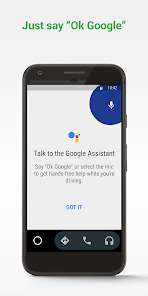
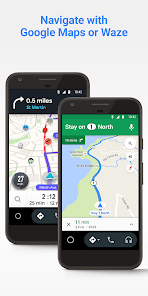
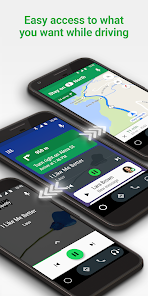
Android Auto has rapidly become an integral part of my driving experience. This app transforms my car's infotainment system, making it more interactive and user-friendly. Here are some of the core features that stand out:
Android Auto has become my trusted companion on the road. I frequently use it during my daily commute to work. As I hop into my car, the app automatically connects to my phone, displaying my preferred apps on the dashboard. One morning, I found myself stuck in unexpected traffic. Instead of stressing out, I asked Android Auto to find an alternative route. Instantly, Google Maps recalibrated my path, saving me valuable time. I also utilize it when running errands. With the ability to quickly call a store or check traffic conditions, Android Auto makes multitasking while driving much safer and easier.
The user interface of Android Auto is sleek and easy to navigate. Upon connecting my phone, the app presents a clean layout with large icons that are easy to tap while driving. The workflow is seamless; I can switch between navigation, music, and calls with just a few taps. Performance-wise, it’s impressive. The app responds quickly, and I’ve not experienced any lag during usage. Overall, the feelings after using Android Auto are overwhelmingly positive. It feels like the app was designed with drivers in mind, prioritizing safety and convenience without sacrificing functionality.
One of the best aspects of Android Auto is that it is completely free to use. There are no hidden fees or subscriptions required to access its features. Of course, while some third-party apps you may use with Android Auto (like streaming services) may have their own subscription fees, the core functionality of Android Auto itself is entirely at no cost. This makes it a budget-friendly solution for enhancing your driving experience.
Android Auto regularly receives updates that enhance its features and fix bugs. I’ve noticed improvements in voice recognition and app compatibility over time, which has made my experience even smoother. Google provides solid support through their online forums and help centers, where users can find solutions to common issues. I’ve personally reached out for assistance and received prompt responses, reflecting the commitment to user satisfaction.
When it comes to security and privacy, Android Auto stands out positively. The app is available directly from the Google Play Store, ensuring a legitimate and safe download source. During the registration process, users are required to provide minimal personal data, primarily tied to their Google account, which is standard practice for most apps. I appreciate that my data is kept to a minimum, and I’m not bombarded with ads while using the app. There is, however, a level of tracking involved, as Google collects data to improve user experience and enhance services. It’s crucial for American users to stay informed about how their information is utilized, and Android Auto provides transparency about its data usage policies. Overall, I feel secure using Android Auto, knowing that my privacy is respected while I enjoy its features on the road.

 Experience seamless navigation Access your favorite apps easily Enjoy hands-free communication Stay focused with voice commands Customize your dashboard layout
 Limited app compatibility Requires a stable connection User interface can be cluttered Voice commands may misinterpret
  Google Play
  App Store
 Yes, you can customize the Android Auto interface to some extent. You can rearrange app icons, change wallpaper, and adjust settings for notifications and voice commands. However, the level of customization may depend on your vehicle's infotainment system.
Yes, many newer vehicles support wireless Android Auto. To use it, ensure your car's system is compatible and your phone has Wi-Fi and Bluetooth enabled. Follow the prompts to connect without a USB cable. However, performance may vary based on the vehicle and phone.
Not all vehicles support Android Auto. It's essential to check if your car's infotainment system is compatible. Many newer cars do support it, but older models may require aftermarket solutions to enable the feature.
An internet connection is required for certain features, such as navigation and streaming music. However, some apps may have offline capabilities. For the best experience, ensure your phone has a stable connection to access real-time data and updates.
To disconnect Android Auto, simply unplug the USB cable or disable Bluetooth on your phone if using a wireless connection. You can also go into the settings of the Android Auto app on your phone to remove your vehicle connection entirely.
You can reach Android Auto Customer Service through the Google support website or the Google Play Help Center. Look for contact options such as chat or email.
Ensure your phone is connected via USB or Bluetooth. Follow the prompts on your vehicle's screen and allow permissions when prompted on your phone.
Open the app and sign in using your Google account credentials linked to your Android device. The app should sync automatically.
Android Auto does not have a direct customer number. Instead, use the Google support website for assistance.