

Version: 1.8.0.1
Developer: Pixel Respawn LLC
 Verified App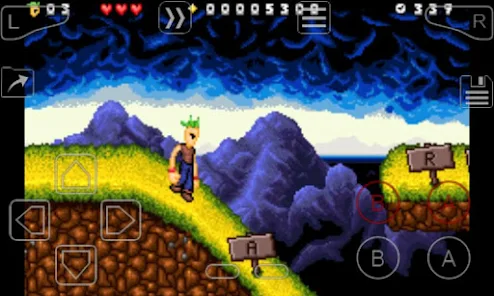
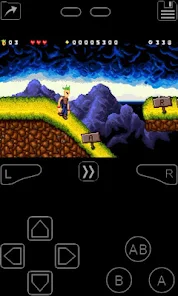
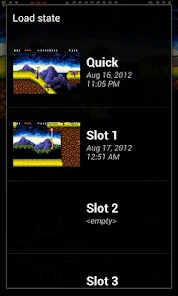
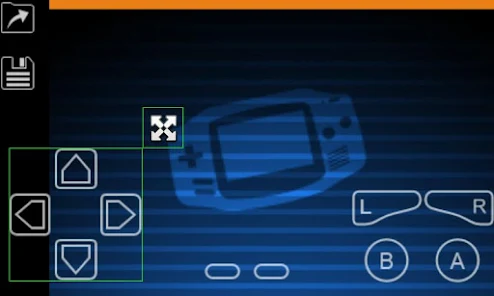
"My Boy! Lite" is a popular Game Boy Advance (GBA) emulator designed for Android devices. One of its standout features is its high compatibility with a wide range of GBA games, allowing users to enjoy their favorite titles without any significant issues. The emulator supports save states, enabling players to save their progress at any point in the game, which is particularly useful for challenging levels or lengthy gameplay sessions.
Another notable feature is the ability to customize controls, allowing users to adjust the on-screen buttons to their liking for a more comfortable gaming experience. The emulator also supports cheat codes, giving players the option to enhance their gameplay with various cheats. Additionally, "My Boy! Lite" offers a fast and smooth performance, even on lower-end devices, ensuring that games run without lag. The app also includes a user-friendly interface, making it easy for both new and experienced users to navigate and find their favorite games.
Using "My Boy! Lite" is straightforward and user-friendly. First, download and install the app from the Google Play Store. Once installed, you will need to obtain GBA ROM files, which are the game data files required to play. Ensure that you have the legal right to use these ROMs, as downloading them from unauthorized sources may violate copyright laws.
After acquiring the ROM files, open "My Boy! Lite" and navigate to the location where your ROMs are stored. The app will automatically scan for available games, and you can select the one you wish to play. Once the game loads, you can customize the controls and settings according to your preferences. Utilize the save state feature to save your progress at any point, allowing you to resume your game later. With its intuitive interface, "My Boy! Lite" makes it easy to dive into classic GBA games and enjoy a nostalgic gaming experience.
"My Boy! Lite" comes with several advantages that make it a popular choice among GBA enthusiasts. One of the primary pros is its high compatibility with a vast library of GBA games, ensuring that most titles run smoothly. The app's ability to save states is another significant benefit, allowing players to save their progress easily. Additionally, the customizable controls enhance the gaming experience, making it more comfortable for users. The emulator also performs well on a variety of devices, including those with lower specifications.
However, there are some drawbacks to consider. The "Lite" version of the app has limitations, such as the inability to use certain advanced features available in the paid version. Users may also encounter occasional ads, which can disrupt gameplay. Furthermore, while the app supports cheat codes, the process of entering them can be cumbersome for some users. Overall, while "My Boy! Lite" offers a solid GBA emulation experience, those seeking a more comprehensive feature set may want to consider upgrading to the full version.

 #N/A
#N/A 
 #N/A
#N/A  Google Play
  App Store
 Spotify Wrapped is an annual feature that summarizes your listening habits, including your most-played songs and artists of the year.
To create a playlist, click "Your Library," then "Playlists," and select "Create Playlist." Add songs by searching or browsing.
Yes, with a Spotify Premium subscription, you can download songs and playlists for offline listening.
Spotify offers a free tier with ads, as well as a Premium subscription that removes ads and adds features.
Click the three dots next to the song, select "Share," and choose your preferred sharing method, like social media or a link.